
It’s designed to be fast, forgiving, and realistic.
The idea: capture everything, decide what matters, block it on the calendar, then do a short review so next week is easier.
Step 1: Set up three calendars (so planning stays clean)
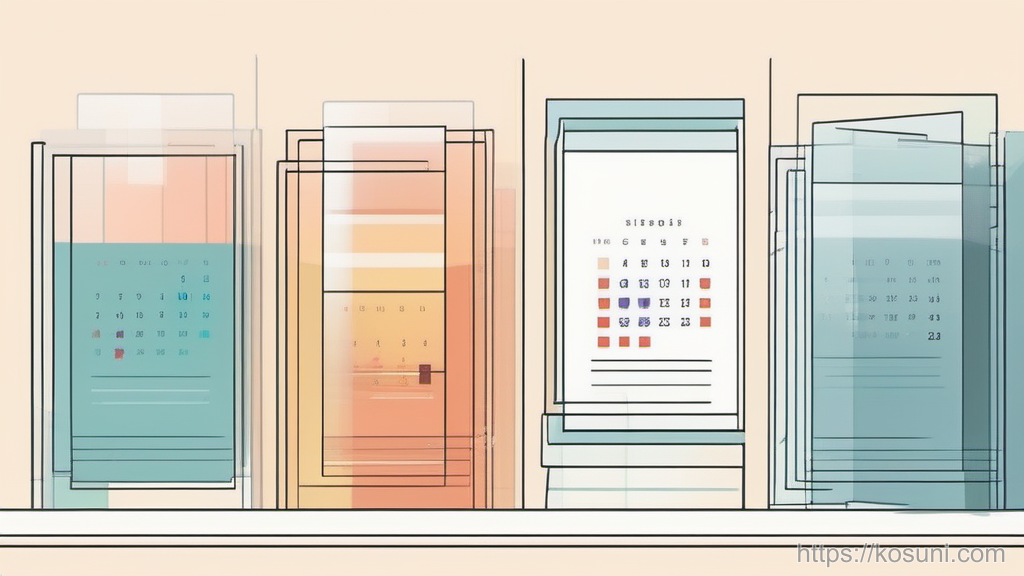
Create (or use) three calendars in Google Calendar:
- Commitments: meetings, appointments, deadlines you can’t move
- Focus blocks: deep work, study, writing, project time
- Personal: family, health, errands, travel time
On iPhone: open Google Calendar → tap the menu (three lines) → scroll to your Google account → make sure the calendars you want are toggled on.
Step 2: Do a 10-minute “capture sweep” (one place, no sorting)
Pick a single inbox for incoming stuff. A notes app works fine, but you can also use a temporary all-day event in Google Calendar like “INBOX — this week” to hold quick bullets.
Now sweep:
- Unread emails/messages that imply action
- Loose tasks in your head (the ones that wake you up later)
- Upcoming obligations (calls, renewals, school items, bills)
- Personal needs (exercise, grocery run, admin life stuff)
Don’t estimate time yet. Just get it out of your head.
Step 3: Convert the sweep into three outcomes (do, defer, drop)

Go line by line and label each item as one of these:
- Do: must happen this week
- Defer: not this week (pick a later week or park it)
- Drop: not worth carrying
Then pick your top 1–3 outcomes for the week. If everything is priority, nothing is.
Step 4: Time-block your week in this order (commitments → focus → buffers)
The order matters because it keeps you honest about available time.
- 1) Place commitments first (meetings, appointments, fixed deadlines).
- 2) Add focus blocks next for your top outcomes (start with 2–4 blocks).
- 3) Add buffers last (travel, prep, admin, and recovery time).
On iPhone in Google Calendar: tap “+” → Event → choose the right calendar (Commitments / Focus blocks / Personal) → set time → Save.
A practical rule: if a task takes 60 minutes in your head, schedule 75–90. You’re paying for context switching.
Step 5: Use a repeatable event template (so you don’t reinvent titles)
Event names are tiny, but they change your behavior. If your calendar says “Project,” you’ll avoid it. If it says “Project — draft intro + outline,” you can start.
Try this naming template:
- Verb + deliverable: “Write outline,” “Review invoices,” “Plan meals”
- Next action in parentheses: “(open doc, list headings)”
- Optional finish line: “done when 3 bullets exist”
When you create a focus block, write the next action directly in the title so you don’t need extra motivation later.
Step 6: Add two safety nets: a daily 10-minute reset and a weekly review

Daily reset (10 minutes) — pick a consistent time (end of day or first thing):
- Move unfinished focus blocks (don’t delete; reschedule)
- Confirm tomorrow’s first block is specific and startable
- Add any new commitments you accepted that day
Weekly review (15–20 minutes) — Friday afternoon or Sunday evening:
- Look at what slipped and ask: too big, wrong day, or unrealistic duration?
- Choose next week’s 1–3 outcomes
- Pre-place 2–4 focus blocks before the week gets crowded
If you do nothing else, do the weekly review. It compounds.
Step 7: A quick troubleshooting checklist when your week keeps blowing up
When the calendar plan fails repeatedly, it’s usually one of these issues.
- No buffers: meetings stack, transitions vanish, and focus blocks get eaten
- Focus blocks are vague: “Work on project” doesn’t tell you where to start
- Too many priorities: more than 3 key outcomes makes the week fragile
- Underestimated durations: schedule in 30–50% overhead until you calibrate
- Unsynced calendars: personal obligations aren’t visible during planning
Fix one thing at a time and keep the workflow the same.
Takeaway: your calendar should be a realistic contract with yourself
This workflow is simple on purpose: capture, decide, time-block, buffer, review. If you repeat it weekly in Google Calendar on iPhone, your schedule gets calmer—not because life gets quieter, but because your plan gets more truthful.