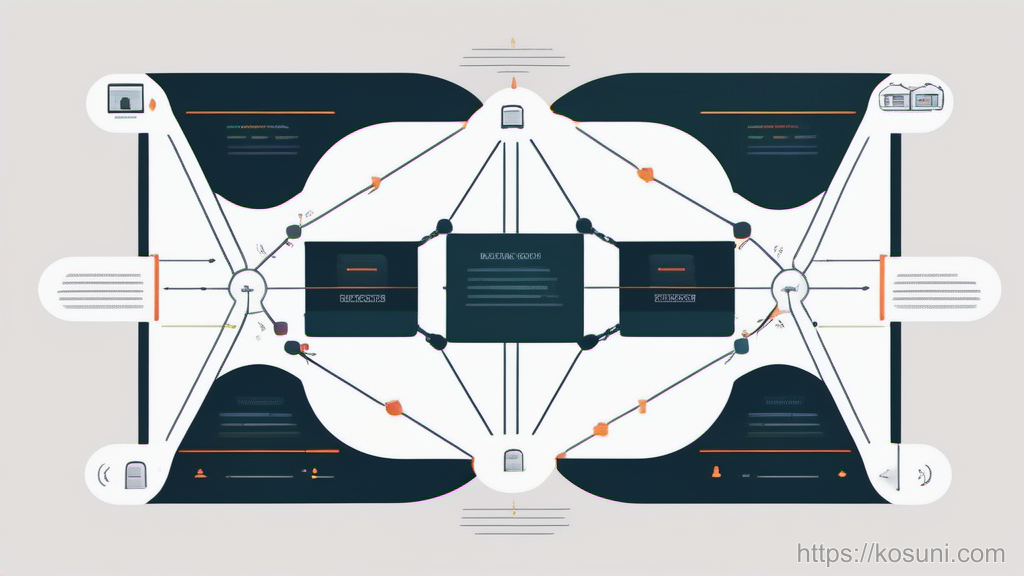
Think of it as a routine you can follow without re-learning security from scratch.
This works on any platform, but I’ll point out places where Microsoft tools help (Microsoft Authenticator, Microsoft Edge password manager, Windows Security).
Workflow overview (the loop you’ll reuse)
The workflow is a loop with four phases. You’ll run the full loop the first time, then repeat smaller parts as needed.
- Intake: list what you have and what matters most
- Harden: fix the highest-risk logins first (unique password + MFA)
- Maintain: keep it from drifting (alerts, small rotations, cleanup)
- Recover: make sure you can get back in quickly and safely

A good rule: you’re not aiming for perfection—just reducing “blast radius” if one login gets compromised.
Step 1: Intake — make a 15-minute inventory (without spiraling)
Start by gathering your logins in one place. You don’t need every account—just enough to prioritize.
Use any notes app or a simple spreadsheet. If you want to keep it in Microsoft land, a basic Excel sheet works.
- Tier A (critical): email inbox, banking, Apple/Google/Microsoft account, password manager, work accounts
- Tier B (important): shopping sites with saved cards, social accounts, cloud storage, utilities
- Tier C (nice-to-have): forums, old apps, one-off signups
Add two columns that make the rest of the workflow faster:
- Password reuse? (Yes / Maybe / No)
- MFA enabled? (Yes / No / Not sure)
If you can’t tell whether a password is reused, mark “Maybe.” The workflow handles uncertainty.
Step 2: Pick your “system of record” for passwords (one place only)
The biggest practical upgrade is choosing one place where passwords live. Not “mostly.” Not “plus a few in the browser.” One.
Common options:
- Dedicated password manager (best for most people): built to generate, store, share, and audit passwords
- Browser password manager (OK if you keep it consistent): for example, Microsoft Edge synced across devices
- Enterprise/work vault: if your organization mandates one
If you’re using Microsoft Edge passwords: make sure sync is on for the account you actually use, and protect that account with MFA. Your “system of record” is only as strong as the account that syncs it.

One more decision that matters: choose a long, memorable master password (if your tool uses one). Write it down once and store it like a house key (physically safe), not like a sticky note.
Step 3: Harden Tier A first (unique password + MFA, every time)
This is where most security advice gets vague. Here’s the repeatable procedure for each Tier A account.
- Generate a new unique password in your password tool (longer is better; avoid “clever” patterns)
- Save it to your system of record immediately (don’t rely on memory “for a minute”)
- Turn on MFA (prefer an authenticator app over SMS when possible)
- Confirm recovery options (backup email/phone) are current
- Sign out other sessions if the service offers it (useful after changes)
Microsoft-friendly note: Microsoft Authenticator is a solid choice for app-based MFA across many services, not just Microsoft accounts. If a site offers “Authenticator app” or “TOTP,” that’s usually what you want.
Do this for your email inboxes first. Email is the key that resets everything else.
Step 4: Add a “rotation rule” that’s small enough to follow
Blindly rotating every password on a calendar often backfires (people start making predictable changes). Instead, rotate based on risk and triggers.
Use this simple rotation rule you can reuse:
- Always rotate after a breach notification, suspicious login, or phishing slip
- Rotate quarterly for Tier A accounts if you share access with others or if the account is business-critical
- Rotate annually (or not at all) for Tier B/C if passwords are unique and MFA is enabled
If you want a Microsoft-native reminder, create a recurring task in Microsoft To Do called “Password check: Tier A (15 minutes)” once a quarter.
The goal is consistency: a small routine you actually run beats a “perfect” plan you abandon.
Step 5: Maintenance — reduce clutter (and the number of passwords you even need)
Password hygiene improves a lot when you delete accounts you don’t use and remove old sign-in methods.
Once a month (or whenever you feel overloaded), do a 10-minute cleanup:
- Close accounts you don’t need (start with subscriptions and old shopping sites)
- Remove saved cards from sites you rarely use
- Check for duplicate vault entries (multiple URLs for the same service)
- Update vault labels so you can find things later (e.g., “Bank – Checking” vs “Bank”)
Bonus tip: prefer “Sign in with Microsoft/Google/Apple” only when you trust that provider account is hardened (unique password + MFA). Otherwise you’re concentrating risk without protections.
Step 6: Recovery drill — make sure you can get back in
Security that locks you out isn’t helpful. A quick recovery drill prevents the worst day: needing a login urgently and discovering your recovery info is outdated.

- Check recovery email/phone on your primary email account
- Generate and store backup codes for critical accounts (save them in your vault or print and secure them)
- Confirm authenticator migration plan: if you lose your phone, can you restore accounts?
- Keep devices updated (Windows Security / OS updates reduce credential-stealing malware risk)
If you use Microsoft Authenticator, verify you understand how your accounts are backed up and restored on your devices. Don’t wait to learn this during an emergency.
Takeaway: your reusable “password day” routine
If you want a simple repeatable cadence, here it is:
- Quarterly (15 minutes): Tier A check — unique password + MFA + recovery info
- Monthly (10 minutes): cleanup — close old accounts, remove stored payment methods you don’t need
- Anytime: after a breach or suspicious login — rotate immediately and sign out sessions
Run the loop a few times and you’ll feel the difference: fewer forgotten logins, fewer security surprises, and faster recovery when something goes wrong.
If you tell me which password tool you currently use (or if you’re undecided), I can adapt this workflow into a tighter checklist for your setup.