When Chrome feels slow, it’s tempting to try random “speed hacks.” Some help, many don’t, and a few make things worse. This guide uses a myths-vs-reality approach, with simple analogies, so you can spend your effort where it counts.

Think of Chrome like a kitchen: tabs are dishes, extensions are gadgets, cache is the pantry, and memory is counter space.
Myth #1: “More RAM automatically makes Chrome fast”
Reality: More RAM mostly changes how many things can stay open before your computer starts shuffling stuff around. It doesn’t magically make slow pages fast.
Analogy: a bigger counter helps you keep more ingredients out, but it doesn’t make a bad recipe cook quicker.
What actually matters more day-to-day:
- Whether your system is swapping (memory pressure causing heavy disk use)
- One tab or extension pegging CPU (a single “burner” left on high)
- Network speed and stability (slow delivery truck, even if your kitchen is huge)
Myth #2: “Closing tabs always boosts speed”
Reality: Closing some tabs can help, but the real issue is usually which tabs (or background pages) are heavy.
Some tabs are like a clean plate. Others are like a blender running nonstop.
In Chrome, check Task Manager (Menu → More tools → Task Manager). Look for:
- CPU spikes that stay high (often video, dashboards, “live” pages)
- Memory usage that keeps climbing (possible leak on a site)
- “Utility” or “GPU process” high usage (can hint at driver or rendering issues)
If one tab is the problem, closing 30 innocent tabs won’t feel like much.
Myth #3: “Clearing cache is a universal speed fix”
Reality: Cache is usually a speed helper, not the culprit. Clearing it can fix weird site behavior, but it can also make your next loads slower while the cache rebuilds.
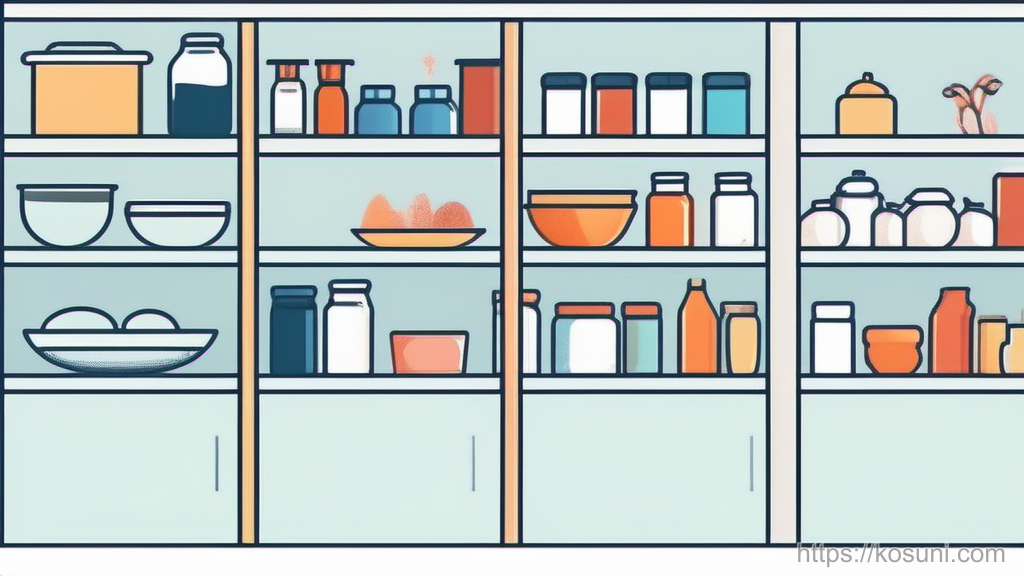
Analogy: cache is a pantry. Emptying it doesn’t improve cooking; it just forces more grocery trips.
Clear cache when you see things like:
- A site looks “stuck” on old styles or broken layout after an update
- You get looping sign-ins or strange redirects that started recently
- A specific site is misbehaving while other sites are fine
If the issue is “Chrome feels heavy everywhere,” cache-clearing is often a distraction.
Myth #4: “Extensions are harmless unless they look suspicious”
Reality: A perfectly legitimate extension can slow things down—especially if it runs on every page, injects scripts, blocks/rewrites requests, or monitors activity.

Analogy: extensions are kitchen gadgets. One is fine. Ten gadgets plugged in, all beeping, starts to feel chaotic.
Beginner-friendly way to test (without guesswork):
- Open an Incognito window (extensions are often disabled there by default)
- Test the same slow site in Incognito
- If it’s noticeably faster, re-enable extensions one at a time (or disable one at a time in normal mode) until you find the slowdown
Also check which extensions have permission to run on “All sites.” That’s the “always on” setting.
Myth #5: “Hardware acceleration should always be on (or always off)”
Reality: Hardware acceleration is usually good, but it can conflict with certain GPU drivers or setups. The right setting is the one that stops glitches on your machine.
Analogy: a power tool speeds up work—unless the bit is wrong, then it just chews up the material.
Consider toggling it only if you see:
- Choppy scrolling or flickering
- Black screens in video players
- High GPU usage during simple browsing
Path: Settings → System → Use hardware acceleration when available (toggle) → relaunch.
Myth #6: “A faster DNS setting makes Chrome ‘snappy’”
Reality: Faster DNS can slightly reduce the time to find a website, but it doesn’t speed up everything that happens after (downloading scripts, images, ads, videos, API calls).
Analogy: DNS is finding the restaurant’s address. It doesn’t make the kitchen cook faster once you arrive.
If pages are slow after they start loading, focus on:
- Heavy sites (lots of scripts, trackers, auto-playing media)
- Extensions that filter requests
- CPU-bound rendering (your computer working hard to paint the page)
A simple “what to do first” checklist (beginner version)
If you only have 10 minutes, do this in order:
- Restart Chrome (clears stuck processes and resets a lot of weirdness)
- Check Chrome Task Manager and sort by CPU, then Memory (find the one “burner”)
- Test Incognito (quick extension reality check)
- Update Chrome and restart (performance fixes often ship quietly)
- Only then consider clearing cache for a specific site, not “everything forever”

Takeaway: aim for “find the loudest culprit,” not “do every tweak”
Most Chrome slowness is one of three things: a heavy tab, a chatty extension, or a struggling device/network moment. If you treat it like a kitchen and look for what’s actively consuming resources, you’ll get to a real fix faster—and avoid the time sink of random cleanups.