Google Pay won’t stay signed in? You’re not alone. This loop—where it keeps kicking you back to the login screen—is frustrating but fixable without wiping your device or resetting apps.
A broken sign-in cycle can make payments feel impossible, especially when you need quick access for transit passes or contactless payments.

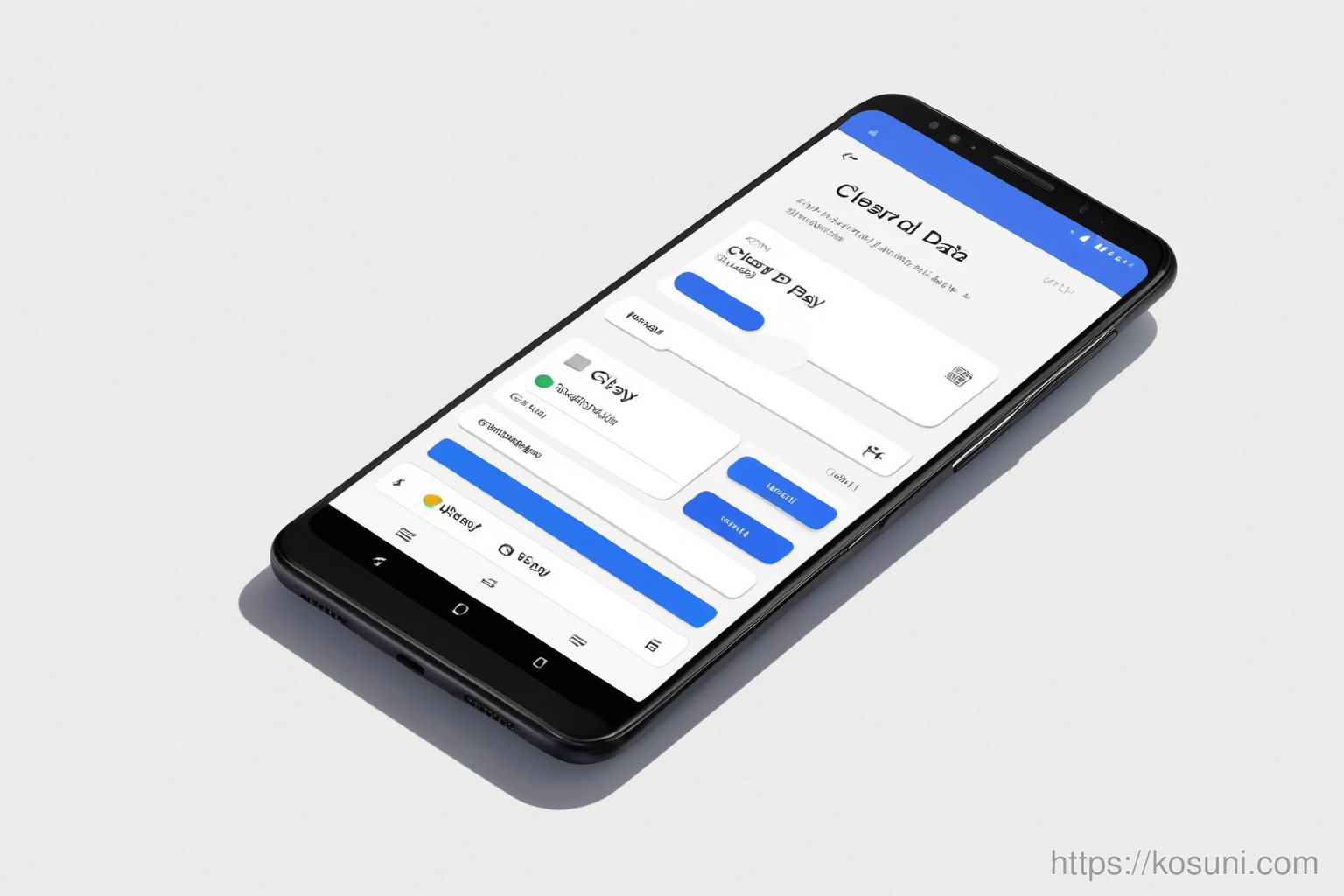
1. Clear Google Pay’s cache and data
Start here—it’s the most common fix for app glitches. This doesn’t delete your payment methods, just resets the app’s internal state.
- Go to Settings > Apps > Google Pay > Storage
- Tap Clear Cache, then Clear Data
- Restart your phone and try signing in again
2. Check account permissions for Google Play services
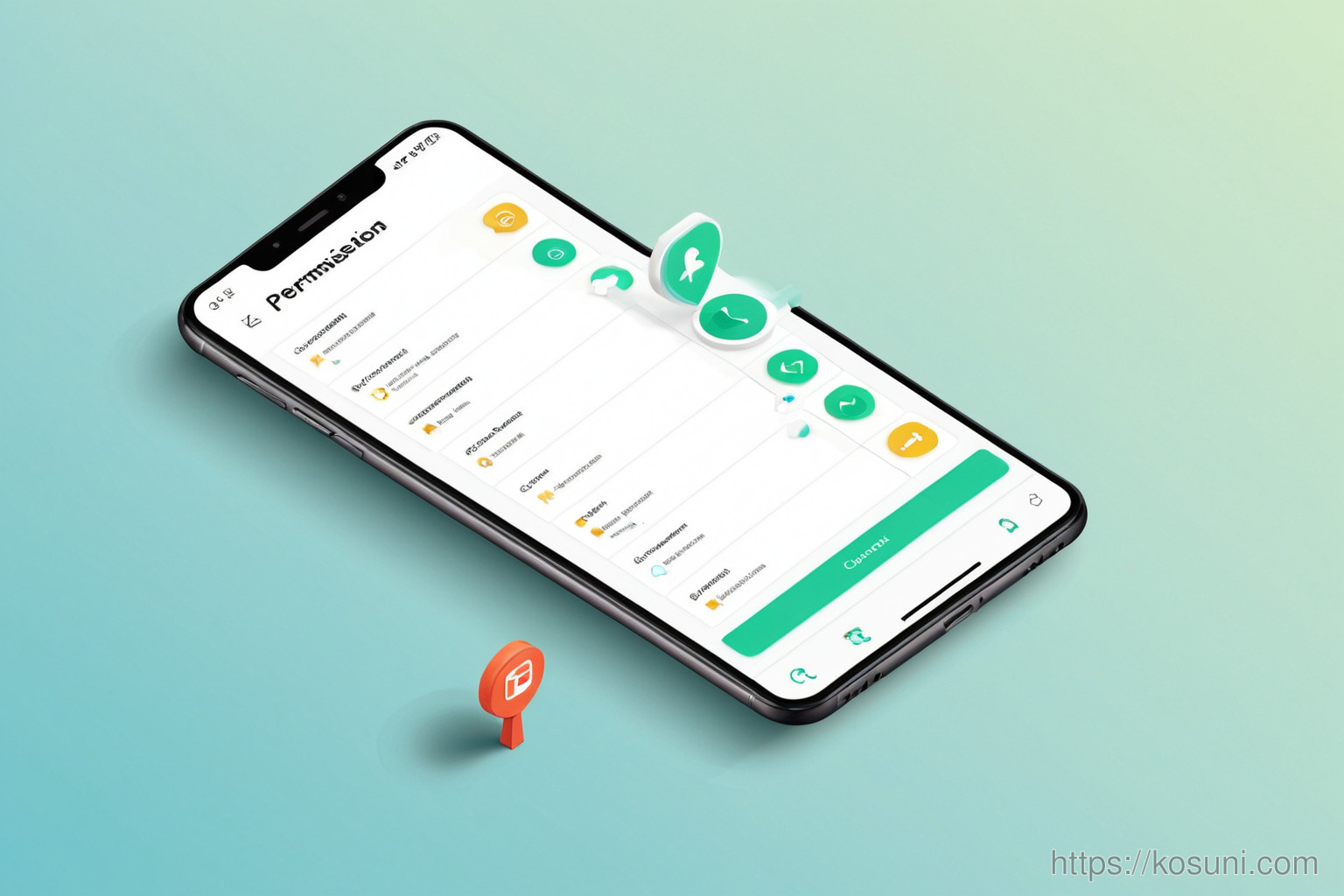
If the loop persists, a permission issue might be blocking sign-in. This is especially true if you’ve recently updated your device or changed privacy settings.
- Open Settings > Apps > Google Play Services > Permissions
- Ensure all permissions like Location and Contacts are turned on (if required)
- Reboot your phone and test again
3. Update or reinstall the app
A corrupted update can cause sign-in loops. Reinstalling Google Pay will refresh the app without affecting payment details.
- Uninstall Google Pay (don’t worry—your saved cards stay intact)
- Go to Play Store > Search for Google Pay
- Reinstall and sign in with your account
Final thoughts
This loop is rarely a hardware issue—it’s almost always app or permission-related. Clearing cache, checking permissions, and reinstalling the app are safe fixes.
You’ll have Google Pay working in minutes without losing any saved cards or settings.