Chrome’s security settings can feel overwhelming on a Mac. You might wonder: Do I need to adjust anything? Will changing this break my workflow? The truth is, most people don’t need to touch the advanced options.
Here’s what matters—and what you can safely ignore.
Security Settings That Actually Protect You
Your Mac and Chrome work together to keep things safe. You only need to tweak a few settings if you’re dealing with specific risks like phishing or tracking.
- Site Permissions: Control who can access your camera, microphone, or location
- Safe Browsing: Blocks harmful sites and downloads automatically
- Privacy Controls: Limit how websites track you across the web
These three settings are where most people should focus.
Settings That Can Cause Confusion (And What to Do About Them)
Some settings look important but don’t do much for your day-to-day safety. For example:
- Content Settings > Cookies: Don’t disable all cookies—this breaks logins and site features
- Advanced Security Options: Most of these are meant for IT teams, not everyday users
- Safe Browsing Level: “Standard” is enough unless you’re a high-risk user
How to Check Your Current Setup
Open Chrome > Settings > Privacy and Security. You’ll see your current settings in plain language—no tech jargon.
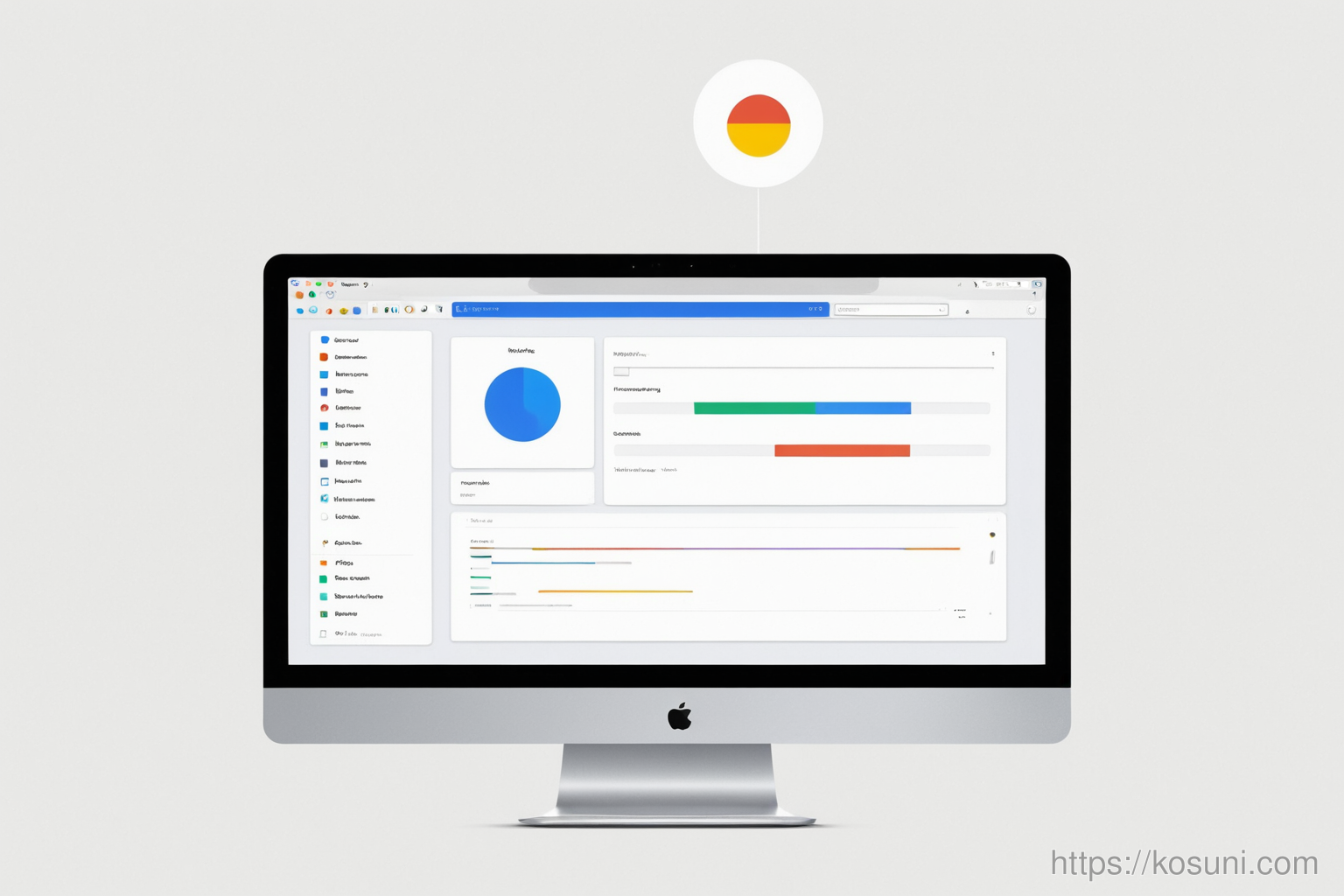
This view is designed for people who aren’t security experts.
When to Consider Extra Tools
If you’re concerned about tracking, consider a browser extension that blocks third-party trackers. But don’t enable every privacy tool at once—it can slow your browsing down and cause conflicts with websites.
A Simple Checklist for Your Security Setup
- Enable Safe Browsing (default is on)
- Review site permissions monthly
- Use a password manager instead of saving passwords in Chrome
- Check privacy settings when installing new extensions
The Bottom Line: You’re Probably Already Safe
Most Mac users don’t need to change anything beyond the basics. Chrome’s default settings are designed for everyday safety, not just technical experts.