iPhone storage vocabulary can feel slippery: “offload,” “delete,” “in iCloud,” “on this iPhone,” “cache,” “documents & data.” This is a plain-English glossary that translates those terms into a simple closet analogy, so you can make decisions without guessing.
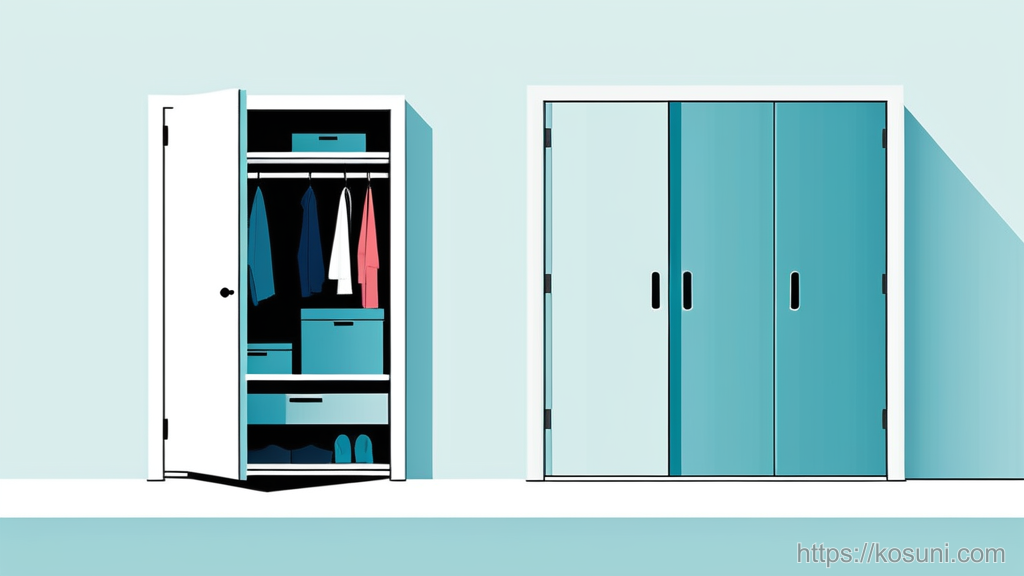
Think: your phone is a closet, apps are bins, and iCloud is a storage unit you can visit.
Quick note: wording varies a little by app, but the ideas stay the same.
The closet picture (the one analogy we’ll use)
Phone storage is the closet in your room: fast to access, limited space.
iCloud (and other cloud services) are like a storage unit: you can keep things there, but you might need internet to fetch them.
Apps are bins you keep in the closet. Each bin can contain stuff you care about (documents, downloads, messages, media) and stuff you don’t (temporary clutter).
“Storage” vs “iCloud Storage” (two different meters)
iPhone Storage is how full your closet is. When it’s nearly full, your phone can feel cramped (updates fail, apps reload, camera won’t save).
iCloud Storage is how full your storage unit is. Running out there doesn’t necessarily fill your phone—but it can stop syncing and backups.
- If iPhone Storage is full: you need to clear or move items off the phone.
- If iCloud Storage is full: you need to delete cloud items, upgrade, or change what syncs.
In Safari terms: don’t assume “I deleted from iCloud” means “I freed phone space,” or the other way around.
“Delete app” vs “Offload app” (throw out the bin vs remove the bin but keep its contents)
Delete App is tossing the whole bin: the app and (usually) its local data go away from the phone.
Offload App is removing the bin itself but keeping a labeled bag of its contents in the closet. The icon stays, and you can reinstall the app quickly.

- Offload is helpful when the app is big, but you want to keep your work inside it.
- Delete is best when you’re done with the app or you’re sure its data is synced elsewhere.
A common beginner surprise: offloading doesn’t always free as much space as you expect, because that “bag of contents” (Documents & Data) can be the real space hog.
“Documents & Data” (the stuff inside the bin)
Documents & Data is the app’s saved content on your phone: downloads, offline files, message history, edited projects, maps saved for offline, and so on.
In the closet: it’s everything you put inside the bin—often more than the bin itself.
- Example: a video editor might have small app size but huge project files.
- Example: a messaging app might keep a large local media library.
If Documents & Data is huge, deleting and reinstalling the app can shrink it—but only do that if you’re sure the important stuff is synced or backed up.
“Cache” (temporary clutter meant to speed things up)
Cache is temporary storage used to load things faster: recently seen images, website bits, thumbnails, and other “keep it handy” items.
In the closet: it’s the pile of stuff you set by the door because you might need it again soon.

- Clearing cache usually frees some space, but it can come back quickly.
- Side effect: apps/sites may feel slower at first while they rebuild it.
Safari-specific: Safari’s “website data” is mostly cache + cookies + local storage. Clearing it can fix weird site behavior, but it can also sign you out of sites.
“On My iPhone” vs “In iCloud Drive” (where the item actually lives)
On My iPhone means the file lives in the closet. It counts against iPhone Storage.
In iCloud Drive means it lives in the storage unit. It counts against iCloud Storage.
But there’s a twist: many apps keep a local copy even when the “master” is in iCloud, especially if you recently opened the file.
- If you need immediate space, deleting a local download helps more than deleting a cloud-only reference.
- If you need long-term organization, moving files to iCloud Drive can help—but it’s not always instant space relief.
“Sync” vs “Backup” (a mirror vs a sealed box)
Sync is a mirror: changes propagate. Delete something here, it might delete everywhere.
Backup is a sealed moving box: it’s meant for recovery. You don’t “work” out of it day to day.
- iCloud Photos is primarily sync (photo library mirrored across devices).
- iCloud Backup is backup (a snapshot of your device settings and app data, depending on app support).
This distinction prevents painful mistakes: if you delete a synced photo, it may disappear from other devices too. That’s not a backup doing its job—that’s sync doing its job.
A beginner checklist: deciding what to delete first (without regrets)
Use this when your iPhone says storage is nearly full.
- Start with the biggest bins: Settings > iPhone Storage, then look at the top few apps.
- Prefer “replaceable” stuff: downloaded movies, podcasts, offline maps, old installers.
- Be cautious with “unique” stuff: project files, message attachments, voice memos, local-only documents.
- Use Offload for rarely used apps when you want the option to come back without losing progress.
- Clear Safari website data if a site is acting odd or storage is extremely tight (expect sign-outs).
- After you free space, restart once to let the system recalculate and settle.
One small habit that helps: if an app offers an “offline downloads” section, manage storage there instead of guessing from the home screen.
Takeaway: the 10-second translation
Delete = throw out the bin. Offload = remove the bin, keep the contents. Documents & Data = what’s inside. Cache = temporary clutter. Sync = mirror. Backup = sealed box.
If you remember just one thing: freeing space fast usually means removing big local media and downloads—not just clearing “cache” and hoping.