When you’re trying to pick “storage,” the options pile up fast: cloud drives, external SSDs, NAS boxes, cheap HDDs, “backup” apps that are really sync, and a hundred pricing tiers. This workflow playbook is for comparing a few options without spiraling into spec sheets.
We’re going to aim for good enough and safe, not perfect.
Step 0 (2 minutes): Define what you’re actually storing
Most overthinking comes from comparing things meant for different jobs. Write a one-line “storage sentence” before you open tabs.
Use this template: “I need to store [what], for [how long], with [how often I access it], and I can’t afford to lose [what would hurt most].”
- What: photos/video, work files, project archives, app data, device backups
- How long: weeks, years, “forever” (family photos)
- Access: daily edits vs rare retrieval
- Can’t lose: originals, client deliverables, tax documents, etc.
That sentence becomes your filter for everything else.
Step 1 (4 minutes): Sort each option into one of 4 buckets
Instead of comparing brands immediately, first compare categories. Many “bad choices” are just a category mismatch.
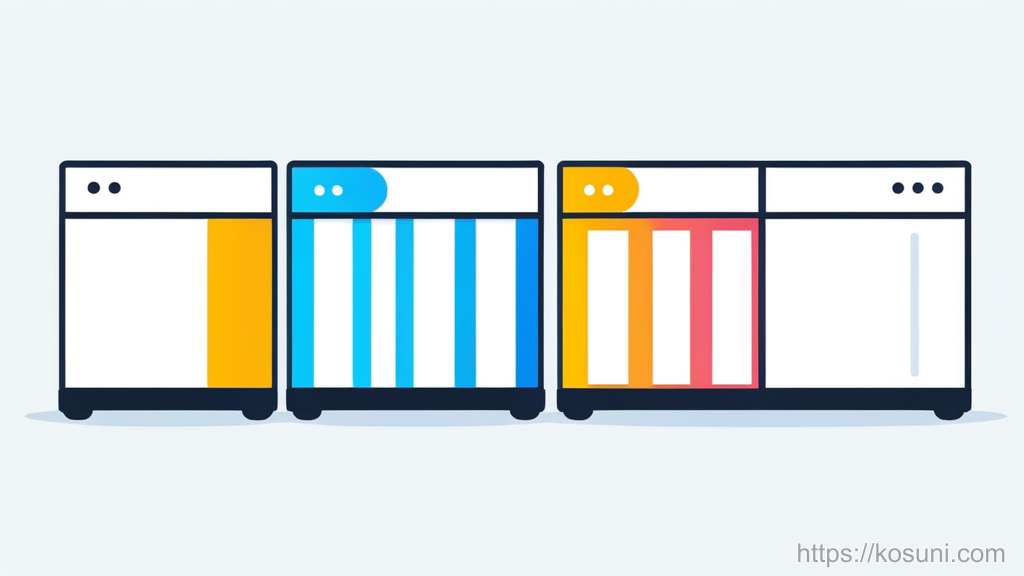
- Local internal storage: fast, convenient, but one device is one point of failure
- External drive (SSD/HDD): portable, good value, but easy to forget to update
- NAS (network storage): shared at home/office, flexible, more setup/maintenance
- Cloud storage: accessible anywhere, easy sharing, ongoing cost, account/security dependency
If you’re comparing across buckets, your “winner” will depend heavily on your storage sentence. That’s normal.
Step 2 (5 minutes): Use a 6-line scorecard (ignore the rest)
Make a tiny table in a note (or Google Sheet) with columns for your top 2–4 candidates. Score each 1–5 quickly. No decimals.
- Data safety: how likely am I to permanently lose data?
- Recovery simplicity: could I restore it under stress?
- Access speed: for my actual use (not benchmark charts)
- Sharing + multi-device: does it fit my devices/people?
- Total cost in 2 years: including subscriptions, replacement drives, extra bays, etc.
- Attention cost: reminders, manual copies, admin, updates, account management
Rule: if an option needs you to be “disciplined forever” to be safe, mark it lower on attention cost (even if it’s cheap).
Step 3 (6 minutes): Run two “reality checks” in Chrome
Specs don’t reveal the annoying parts. These quick checks often do.

- Check #1: Account & recovery path (cloud / online services). In Chrome, search “[service] account recovery” and “[service] restore deleted files”. Confirm you can: recover an account, restore a deleted file, and see version history (if relevant).
- Check #2: Export/escape hatch. Search “[service] export all files” or “[NAS brand] migrate data”. You’re looking for: plain file formats, bulk download, and whether permissions/metadata survive.
If either check feels vague or fragile, lower the recovery simplicity score.
Step 4 (4 minutes): Decide what “backup” means for your choice
Many people pick one storage product and mentally call it “backed up.” This is where data loss happens.

- Copy: a second copy exists somewhere else (could be manual)
- Sync: changes mirror across devices (including accidental deletes)
- Backup: point-in-time history you can restore from (snapshots/versions)
Practical rule: if you can delete a folder and watch it disappear everywhere, you were mostly syncing, not protecting.
Step 5 (3 minutes): Apply “good enough” decision rules
Pick the simplest option that meets your safety needs. Use these tie-breakers when two options feel close.
- If you’ll access files from multiple places weekly: favor cloud (or NAS + remote access only if you enjoy maintenance).
- If the data is irreplaceable (family photos, original work): require a real backup layer (version history or second location).
- If you hate admin: penalize NAS and manual external-drive workflows unless someone else will maintain them.
- If cost is the main constraint: external HDD + a second backup target often beats “cheap cloud” that you won’t renew.
- If you edit large files (video/projects): favor local SSD for working set, and a separate system for backup/archive.
Then stop researching. Your scorecard is “permission” to stop.
Step 6 (1 minute): Write the setup plan in three lines
This prevents a common failure mode: you choose a thing, buy it, then never fully implement the safety part.
- Where files live day-to-day: (example: laptop + cloud folder)
- What makes a second copy: (example: nightly cloud version history + monthly external drive)
- How you’ll test restore: (example: once a month, restore one random folder)
Put a calendar reminder for the restore test. If you never test restore, your confidence is theoretical.
Takeaway: a calm way to compare without spiraling
Don’t “pick the best storage.” Write your storage sentence, score only six realities, run two quick Chrome checks, and choose the simplest setup that you’ll actually maintain. In storage, boring and consistent usually beats clever and fragile.