So let’s make it beginner-simple.
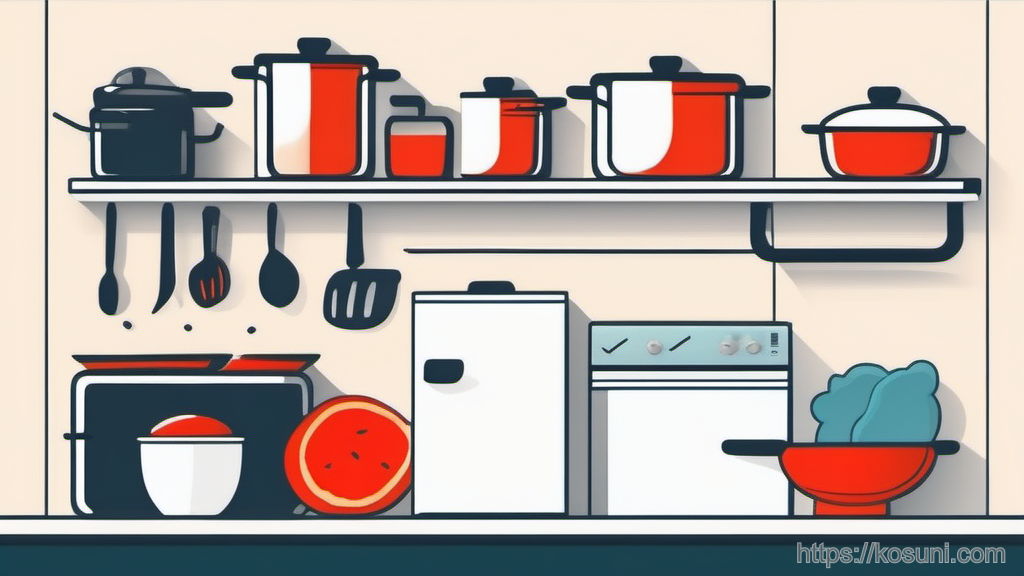
This guide uses one analogy to keep decisions easy: your notes are either an Inbox (dump), a Shelf (store), or the Kitchen (use right now). You can do this in Google Keep + Google Docs, Apple Notes, Notion—anything.
The core analogy: Inbox, Shelf, Kitchen
Most note-taking stress comes from trying to do three jobs at once: capturing, organizing, and using. The trick is to separate them.
Inbox = fast capture with zero structure. Like tossing mail onto the counter.
Shelf = lightly organized storage you can find later. Like pantry shelves.
Kitchen = active notes you’re working from this week. Like ingredients already on the cutting board.
Capture rules: what to write (so you’ll actually reuse it)
Beginners often capture either too little (“Buy milk”) or too much (a novel you’ll never reread). Aim for “future you can act on.”
Use a simple template:
- What is it? (one line)
- Why does it matter? (one line)
- Next step (one small action)
Example: “New router seems slow. Why: video calls drop. Next: run speed test near router + bedroom.”
That’s enough context to make the note useful later.
Where notes go (and what each location is for)
You don’t need 30 folders. You need 3–6 predictable places.
A calm default structure:
- Inbox: everything new lands here first
- Kitchen / This Week: current tasks, project notes, active checklists
- Shelf / Reference: things you look up (instructions, addresses, settings, medical info)
- Shelf / Learning: book notes, course notes, “things I want to remember”
- Shelf / Templates: reusable formats (packing list, meeting notes format)

A beginner-friendly workflow (10 minutes to set up)
This is the part that keeps your notes from turning into a junk drawer.
Step 1: Pick your capture tool. Use the fastest thing on your device (widget, quick note, voice note). The best tool is the one you’ll use when you’re tired.
Step 2: Create an Inbox. One label/folder/note called “Inbox.” Everything goes there by default.
Step 3: Create a “This Week” space. One place you trust for active notes.
Step 4: Create 2–3 Shelf areas. Reference, Learning, Templates.
Step 5: Add one weekly reset. A repeating calendar reminder is fine: “Notes reset (10 min).”
The weekly reset: a checklist that prevents note overload
Think of this like cleaning the counter so you can cook again.

- Scan the Inbox and delete anything that’s clearly useless now
- Move active items into This Week
- Move “keep forever” items into Reference
- If a note is long, add a one-line summary at the top
- If a note has an action, make the next step explicit
- If you didn’t touch a “This Week” note for 2 weeks, either archive it or schedule it
You’re not organizing everything. You’re just keeping the system breathable.
Simple Google-friendly setup (Keep + Docs) you can copy
If you use Google tools, this combination works well for beginners:
- Google Keep for Inbox capture (fast, searchable, great on mobile)
- Google Docs for Kitchen notes that grow (project plans, meeting notes, outlines)
A practical pattern:
- Keep label: Inbox (default)
- Keep labels: This Week, Reference
- One Google Doc named This Week with sections you reuse (Top 3, Waiting on, Notes)
- One Google Doc folder named Shelf for longer reference docs
If something in Keep starts getting long, promote it to a Doc and leave a short pointer note behind.
Common beginner mistakes (and the gentle fix)
Mistake: Trying to tag perfectly.
Fix: Use fewer labels, rely on search, and do a weekly reset.
Mistake: Writing notes with no “why.”
Fix: Add one line: “This matters because ___.”
Mistake: Mixing “reference” and “tasks.”
Fix: Put tasks in This Week; keep Reference boring and stable.
Mistake: Saving everything.
Fix: Deleting is part of note-taking. If it’s not useful, it’s noise.
Takeaway: keep notes usable, not perfect
If you remember one thing: capture fast (Inbox), store simply (Shelf), and work from a small set (Kitchen).
When your notes feel messy, don’t redesign the system. Do the 10-minute reset and get back to using them.