After updating Safari or Chrome on your Mac, you might find yourself stuck in a loop of signing into Google services repeatedly. It’s frustrating but usually fixable without deleting data or resetting accounts.
Here’s how to resolve it cleanly.
1. Clear browser cookies for Google domains
Browser updates sometimes reset cookie permissions, causing services like Gmail or Drive to treat you as a new user.
To fix this:
- Open Safari or Chrome settings
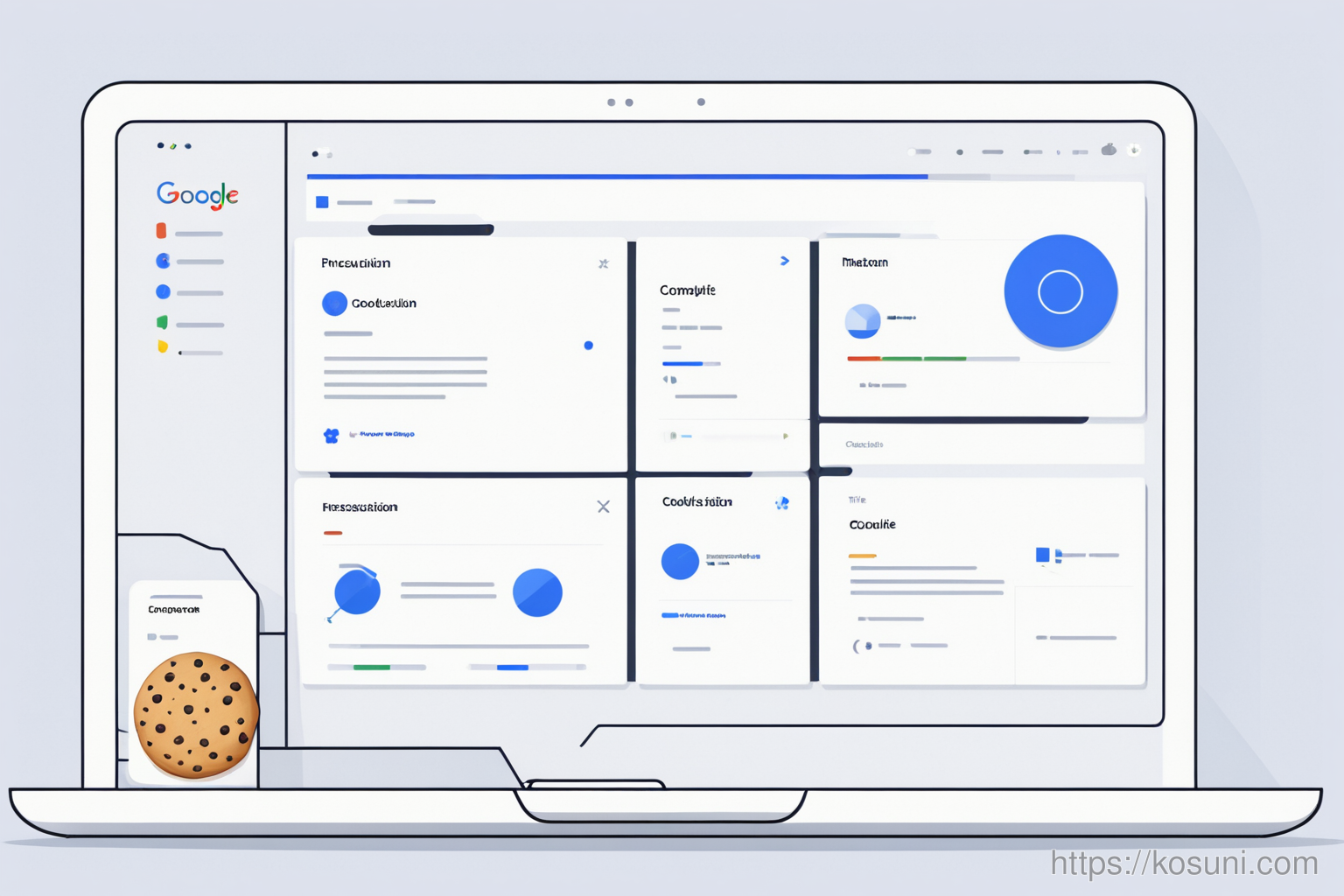
- Navigate to Privacy & Security → Cookies and Website Data
- Search for google.com, accounts.google.com
- Select them and click “Remove”
You’ll need to sign in once more, but it should stick after that.
2. Check for conflicting browser extensions
Some ad blockers or privacy tools interfere with Google’s session tracking.
Troubleshoot by disabling all extensions temporarily:
- Go to Safari → Preferences → Extensions (or Chrome → More Tools → Extensions)
- Toggle off all add-ons
- Reload a Google service page
If the sign-in loop stops, re-enable extensions one by one to find the culprit.
Final thoughts
This issue usually comes down to browser settings or a single extension. Clearing cookies and testing with extensions off resolves it in most cases.
Once fixed, you won’t need to re-enter your password for months.