After updating an app on your iPhone or iPad, you might get a sudden prompt asking you to reauthenticate with your Apple ID. It’s annoying, but usually fixable without resetting anything.
Think of it like a door that keeps locking itself after you walk through—it shouldn’t happen if everything is working right.
1. Check Your Apple ID Settings
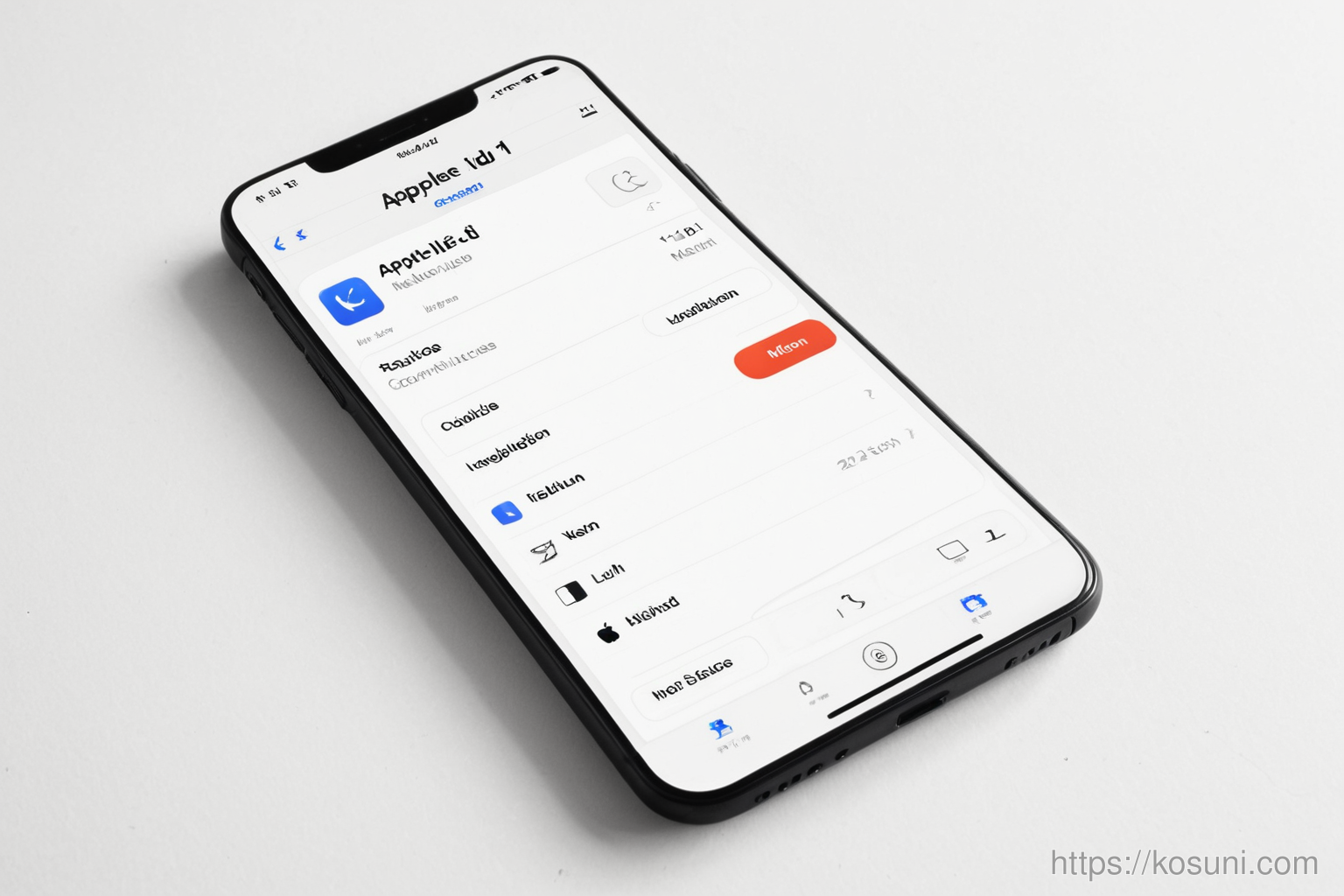
Go to Settings > [Your Name] > Password & Security. Make sure your account details are correct and that "Two-Factor Authentication" is enabled (it’s a security feature, not the problem here).
2. Sign Out of All Devices
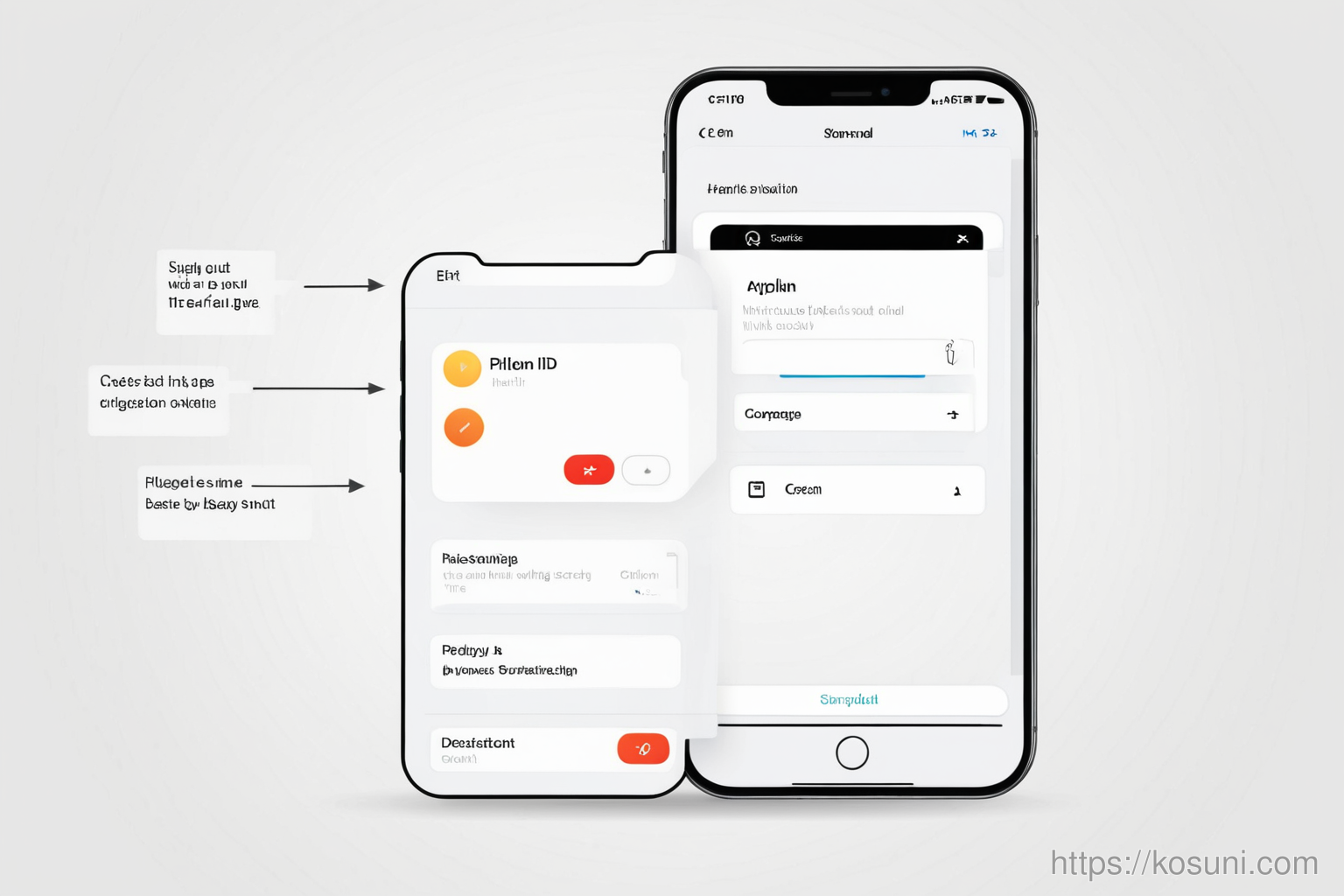
This step clears temporary login states across devices. Go to Settings > [Your Name] > Sign Out > "Sign Out" (not just "Turn Off iCloud"). Wait a few minutes, then sign back in.
3. Reset Your Network Configuration
Sometimes network settings get tangled with authentication systems. Go to Settings > General > Transfer or Reset iPhone > Reset Network Settings. This won’t delete your data, just reset Wi-Fi and cellular settings.
Final thoughts
Most of the time, this reauthentication prompt is a minor hiccup caused by temporary glitches in how apps communicate with Apple’s servers. It usually resolves after signing out and back in or resetting network settings.
If it keeps happening, try restarting your device—it’s simple but often works better than you’d expect.